Short answer: most IPTV buffering is not caused by your internet speed. It is caused by an unstable connection, an underpowered device, a badly configured player buffer, or a server that has been sold to more people than it can carry. Those four causes look identical on screen and have completely different fixes — so the trick is not trying random fixes, it is running a short diagnosis first and then fixing the right thing. If nothing plays at all, that is a different problem: start with our IPTV not working checklist.
The frustrating part of buffering is that everything appears fine. The speed test says 200 Mbps. Netflix plays in 4K. And yet the football stutters every ninety seconds. That gap between “my internet is fast” and “my stream is broken” is the whole subject of this guide, and once you understand it the fix usually takes ten minutes.
Why IPTV Buffers When Netflix Does Not
Netflix downloads your film minutes ahead of what you are watching. Live IPTV cannot — it is happening now, so the player only ever holds a few seconds of video in hand. That difference is the entire explanation.
A streaming service with a thirty-second buffer can absorb a five-second network hiccup and you will never notice. A live stream with a three-second buffer cannot absorb anything. The instant your connection dips, the buffer empties, the picture freezes, and the spinning wheel appears while the player refills.
So the number that matters for IPTV is not your download speed. It is consistency. A rock-steady 30 Mbps line delivers flawless IPTV; a 500 Mbps line that dips for two seconds every minute will stutter forever, and no upgrade from your provider will change that.
The four families of cause
| Cause | What it looks like | Where the fix lives |
|---|---|---|
| Connection instability | Random stutter on every channel, worse further from the router | Your Wi-Fi, cabling, router |
| Weak device | Stutter only on 4K or busy channels; device hot to the touch | Your box or stick |
| Player or app settings | Buffers at channel change, or on one app but not another | App buffer, decoder, cache |
| Oversold server | Perfect at 2pm, unwatchable at kick-off, same channels every time | Your provider — nothing you can do |
Work through the fixes below in order. They are deliberately arranged cheapest and most likely first, and each one narrows down which family you are in.
The 12 Fixes, In Order
Fix 1 — Plug in an Ethernet cable
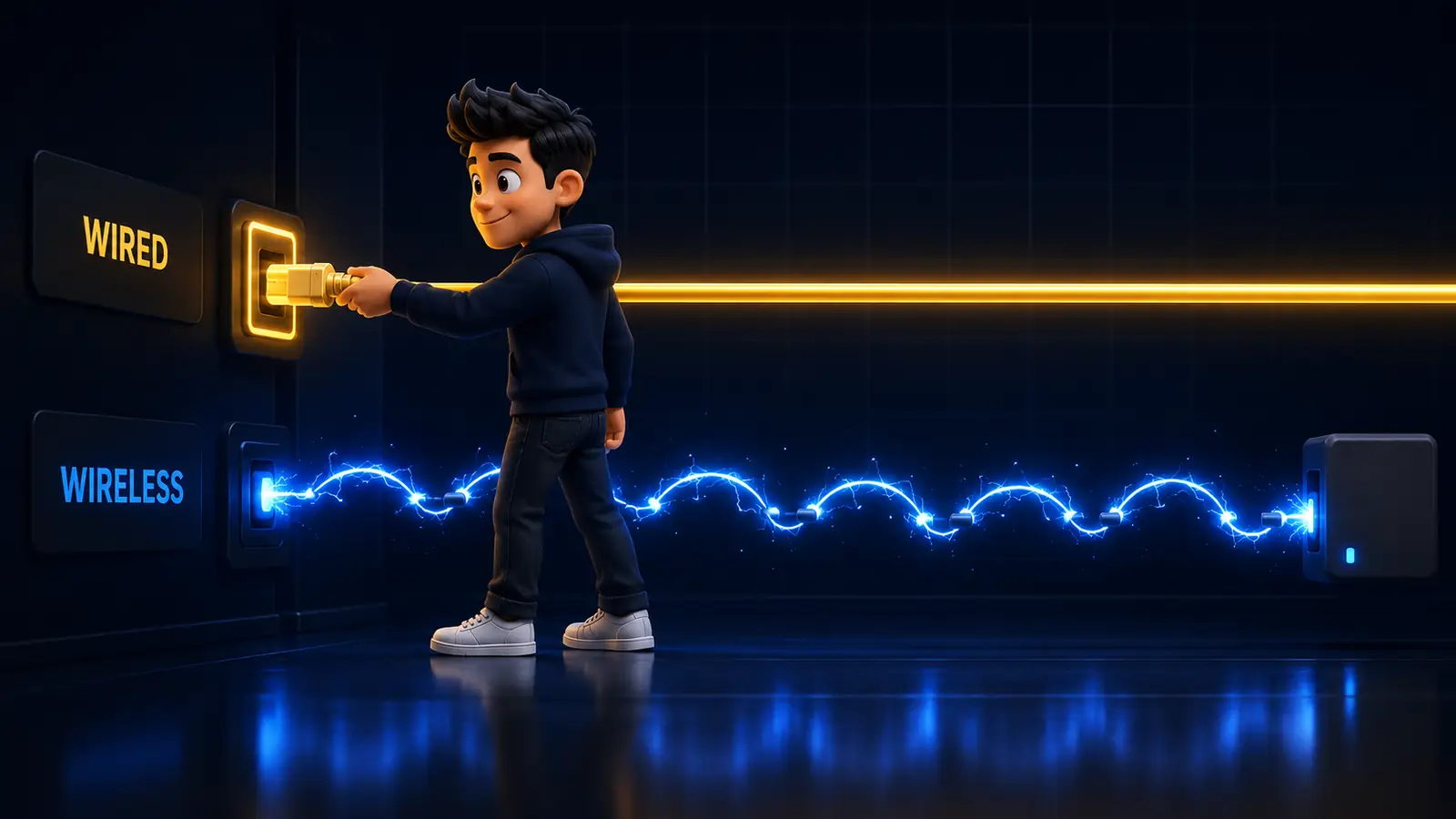
This single change resolves more buffering complaints than everything else on this list combined. Wi-Fi is a shared, interference-prone medium: microwaves, neighbours’ networks, walls, and every other device in the house compete for the same air. Those brief dips are invisible to a web page and fatal to a live stream.
If your box has an Ethernet port, use it. If it is a Firestick, a USB-OTG Ethernet adapter costs about fifteen dollars and is the best money you will spend on your setup. If running a cable is impossible, a powerline adapter is the next best thing, and a mesh node placed in the same room is a distant third.
Fix 2 — Move to the 5 GHz band, or move closer
If you are stuck on Wi-Fi, connect to the 5 GHz network rather than 2.4 GHz. The 2.4 GHz band is slower and far more congested. The exception is a stream two floors away from the router, where 5 GHz will not reach at all and 2.4 GHz at least stays connected — in that case the real answer is Fix 1 or a mesh node, not a band change.
Fix 3 — Restart the router, then the device, in that order
Routers accumulate state and degrade over weeks. Power the router off for a full sixty seconds, let it fully come back, then restart the streaming device. Doing it in the other order means the device reconnects to a router that has not finished waking up. Boring, and it fixes a genuine share of cases.
Fix 4 — Raise the buffer in your player
Most IPTV apps ship with a small buffer to keep channel switching snappy. If your connection is a little unstable, that is exactly the wrong trade. In TiViMate the setting is under Settings → Playback → Buffer size; in IPTV Smarters Pro it is in the player settings.
Raise it one step. Channels will take perhaps a second longer to open, and short network dips will stop reaching the screen. If one step is not enough, raise it once more — but if you need a very large buffer to stay stable, you have a connection problem that Fix 1 will solve properly.
Fix 5 — Switch the decoder from software to hardware
Every serious player lets you choose a decoder. Hardware decoding uses the dedicated video chip; software decoding makes the general-purpose CPU do the work, which is far slower and runs hot. On a stick or a budget box, software decoding cannot keep up with 4K H.265 and drops frames continuously.
Set it to hardware (or “HW+” where offered). If a specific channel then shows no picture, that channel is using an unusual codec — set that one channel back to software and leave the rest on hardware.
Fix 6 — Clear the app cache and the channel guide
A player that has been running for months holds a stale guide, thousands of cached logos and a bloated database. On a device with 1–2 GB of RAM this alone causes stutter. Clear the app’s cache (on Android and Fire OS: Settings → Applications → your player → Clear cache), then reload the playlist so the guide rebuilds fresh.
Reload the EPG on a schedule rather than on every launch — most apps offer this — because a full guide refresh while you are watching competes with the stream for the same bandwidth.
Fix 7 — Free up memory on the device
This one is specific to Firesticks and cheap Android boxes. Background apps, auto-updating storefronts and screensaver services quietly consume the memory your player needs. Uninstall what you do not use, disable automatic updates, and check free storage — a device with under 1 GB free will stutter regardless of your internet.
If the device is warm to the touch during playback, it is thermally throttling. Move it out of the TV cabinet, or off the back of the TV where a Firestick sits directly against a hot panel, and use the HDMI extender cable in the box.
Fix 8 — Change your DNS
DNS does not carry video, but it resolves the addresses your player requests — and some internet providers run slow or filtered resolvers that add delay at every channel change and occasionally block the lookup entirely. Setting a public resolver such as 1.1.1.1 or 8.8.8.8 on the router (better) or the device (fine) is free and takes two minutes.
Expect it to help with slow channel switching and “channel not loading” more than with mid-stream stutter. It is a cheap fix, not a miracle.

Fix 9 — Test with the VPN off, then decide
A VPN is not a buffering cure, whatever the forums say. It adds an extra hop, encryption overhead and often a much longer route to the server. The one situation where it genuinely helps is ISP throttling of streaming traffic — which shows up as smooth playback during the day and consistent stutter every evening on every channel.
The test is simple. Watch a busy channel for ten minutes with the VPN off, then ten minutes with it on, at the same time of night. If it is clearly better with the VPN, keep it and choose the closest server. If not, turn it off while you watch.
Fix 10 — Try a different player
Install a second app and log in with the same credentials. If the stutter disappears, the problem was never the server — it was the app’s buffering, decoder or an overloaded database. If it stutters identically in both, you have ruled out the player entirely and moved a long way toward the real answer. Our player comparison covers which app suits which device.
Fix 11 — Lower the stream quality on purpose
Many providers carry the same channel in FHD, HD and SD versions. If the 4K feed stutters and the HD one is perfect, you have proved the diagnosis: your connection or device cannot sustain the higher bitrate. Watching the HD feed is a legitimate fix — a steady HD picture beats a stuttering 4K one on every screen ever made.
Fix 12 — Compare peak hours with off-peak
This is the deciding test. Watch the same channel at 2pm and again at 9pm on a match night. If 2pm is flawless and 9pm collapses on every channel, on a wired connection, in two different apps, on a device that is not hot — the problem is not in your house. The line is oversold: your provider has put more customers on that capacity than it can serve at peak.
There is no setting that fixes overselling. It is a business decision made by whoever sold you the subscription, and the only remedy is a provider that manages capacity properly. Our guide to reading IPTV reviews on Reddit explains why this specific failure — perfect for a month, then unwatchable during games — is the most common complaint in the entire market.
How Much Internet Speed Does IPTV Actually Need?
| Quality | Typical bitrate | Comfortable line speed |
|---|---|---|
| SD | 2 – 4 Mbps | 10 Mbps |
| HD (720p/1080p) | 5 – 8 Mbps | 15 – 25 Mbps |
| FHD sport (50/60 fps) | 8 – 12 Mbps | 25 – 35 Mbps |
| 4K | 15 – 25 Mbps | 50 Mbps |
| Two devices at once | Add the figures together — simultaneous streams do not share a buffer | |
Note how modest these numbers are. If you have 100 Mbps and a single 4K stream buffers, more speed is not the answer and never was — stability, device power or the server is. This is the most common and most expensive misdiagnosis in IPTV, and it is why people upgrade their broadband and stay exactly as frustrated as before.
A Five-Minute Diagnosis

Rather than trying everything, answer these four questions and you will know which family you are in.
- Does it stutter on every channel, or only some? Only some means the source feed or a codec issue — not your setup. Every channel means connection, device or server.
- Does it stutter on Wi-Fi but not on a cable? Then it is your Wi-Fi, and Fix 1 ends the story.
- Does it stutter in one app but not another? Then it is the player, and Fixes 4 to 6 apply.
- Is it fine at 2pm and broken at 9pm on everything? Then it is the server, and no fix in your house will help.
Four questions, four different answers, four completely different actions. Most people skip this and spend a fortnight changing settings that were never the problem.
Buffering That Is Not Really Buffering
Three symptoms get reported as buffering and are something else entirely:
Audio drifting out of sync. Almost always a decoder or audio passthrough mismatch. Turn off any surround passthrough setting in the player and let the app handle stereo, then re-enable it channel by channel if you need it.
A channel that will not open at all while the rest are fine. Not a buffering issue — that feed is down at the source, or your plan does not include it. Check the channel list and ask support rather than reconfiguring anything.
Everything freezing at exactly the same time each night. Look at scheduled tasks first: a router with a nightly reboot timer, a device auto-update window, or a household backup job. It is remarkable how often “my IPTV breaks at 3am” is a calendar entry rather than a network fault.
Preventing It Next Time
- Buy a device with real headroom — 2 GB of RAM minimum and hardware H.265 decoding. Our box guide ranks them, and the cheap no-name boxes are the single most common hardware cause of stutter.
- Wire the main TV once and forget about buffering on it forever.
- Keep the player lean — one playlist, scheduled EPG refresh, cache cleared occasionally.
- Judge a new provider at peak hours, never on a quiet afternoon.
- Start with one month. Overselling reveals itself in weeks four to six, which is precisely why our plans start monthly.
And if you have worked through all twelve fixes and the answer keeps coming back “the server”, that is genuinely useful information — you now know exactly what to look for in the next one. Our setup guide gets a new service running in about ten minutes on any device, so switching costs you an evening rather than a season.
The Verdict
IPTV buffering is a stability problem masquerading as a speed problem. Wire the device, give the player a bigger buffer, use hardware decoding, keep the box cool and lean — that combination fixes the large majority of cases without spending anything. What it will not fix is an oversold line, and the 2pm-versus-9pm test tells you which of the two you are dealing with in one evening. Diagnose first, fix second, and you will stop paying for problems that were never yours.
Frequently Asked Questions
Why is my IPTV buffering when my internet is fast?
Because live IPTV holds only a few seconds of video in its buffer, so it depends on stability rather than headline speed. A fast line that dips briefly will stutter, while a slower but rock-steady line plays perfectly.
How do I stop IPTV from buffering?
Connect the device by Ethernet, raise the player’s buffer by one step, switch the decoder to hardware, clear the app cache and keep the device cool with free memory. That combination resolves most cases.
Does a VPN stop IPTV buffering?
Only when your internet provider is throttling streaming traffic. Otherwise a VPN adds a hop and encryption overhead and usually makes buffering slightly worse. Test ten minutes with it on and ten with it off at the same time of night.
Why does my IPTV buffer only at night?
Two possible reasons: your provider’s server is oversold and saturates at peak, or your internet provider throttles streaming in the evening. If it happens on every channel over a wired connection in two different apps, it is the server.
What is the best DNS for IPTV?
Cloudflare’s 1.1.1.1 and Google’s 8.8.8.8 are both reliable choices. Changing DNS mainly speeds up channel switching and fixes channels that will not load; it rarely affects mid-stream stutter.
What internet speed do I need for IPTV?
About 15 to 25 Mbps for HD and around 50 Mbps for 4K, adding the figures together for each simultaneous stream. Consistency matters far more than the headline number.
Why does IPTV buffer on my Firestick but not on my phone?
A Firestick has limited RAM and no Ethernet port, and it sits against a hot TV panel. Free up memory, add a USB Ethernet adapter, and use the supplied HDMI extender so it runs cooler.
Should I increase the buffer size in my IPTV player?
Yes, by one step if you get short freezes. Channels take slightly longer to open in exchange for absorbing brief network dips. Needing a very large buffer indicates a connection problem worth fixing properly.
Is buffering the provider’s fault or mine?
Test the same channel at 2pm and at 9pm on a wired connection in two different apps. Flawless off-peak and broken at peak on every channel points to the provider; stutter at all hours points to your setup.
Can a cheap IPTV box cause buffering?
Yes, frequently. Boxes with 1 GB of RAM and no hardware H.265 decoder fall back to software decoding, overheat and drop frames on 4K streams. They are one of the most common hardware causes of stutter.